Test Dose Program
1. What Is the Test Dose Program?
The Test Dose Program allows Treatment Centers (TCs) to receive a set number of free Test Dose products each quarter. The number of doses a TC can receive is determined by how much revenue they generated in the last 90 days.
In plain terms:
- A Treatment Center that orders more gets a higher allowance of free Test Doses.
- When a provider linked to that Treatment Center orders a Test Dose product on a qualifying Sales Order, the discount (100% off) is applied automatically.
- The program tracks how many doses have been used and how much money patients have saved.
2. How the Allowance Is Calculated
At the start of each quarter, the system looks at each Treatment Center's Revenue Last 90 Days and assigns them a Group and Allowance automatically.
Group | Revenue Last 90 Days | Test Dose Allowance | Description |
A | $7,500+ | 125 doses | Top tier accounts |
B | $2,500 - $7,499 | 75 doses | High performing accounts |
C | $750 - $2,499 | 40 doses | Mid-tier accounts |
D | $100 - $749 | 15 doses | New or low-volume accounts |
None | Under $100 | 0 doses | No allotment granted |
Important notes:
- Sales Managers can manually override the allowance on any TC if needed.
- The allowance resets at the start of each new quarter.
- Doses used are counted from the start of the current quarter only.
- TCs with revenue under $100 receive no group assignment and 0 doses
3. How the Discount Works on Sales Orders
When a provider places an order, the system automatically checks whether a 100% discount should be applied to any Test Dose product on the order.
All 5 conditions must be true for the discount to apply:
# | Condition | What It Checks |
1 | Rx is attached | The order line must be linked to a Prescription (Rx) |
2 | Test category product | The product's internal category must be named "Test" |
3 | TC has remaining > 0 | The Treatment Center linked to the Provider must have a positive Test Dose Remaining |
4 | Payment Term is set | The Sales Order must have a Payment Term selected |
5 | Pay Type = Practice Pay | The Sales Order Pay Type must be set to "Practice Pay" |
When all conditions are met:
- The order line discount is automatically set to 100%.
- A Promo Code label (default: TEST-DOSE-FREE) appears on the order line.
- The z_test_dose_promo_applied checkbox is marked on that line.
Overage Behavior (When TC Remaining =0:
- If the TC has the Opt In to Pay for Overage Test Doses checkbox checked: the order is processed and charged at full price (0% discount, no promo code).
- If the Opt In checkbox is unchecked: the automated cron moves the Rx to Clarify Rx with a chatter note, or the manual Send to Lab button raises a blocking error popup.
4. Fields on the Treatment Center Record
Open any Treatment Center contact record and go to the Doctor Dashboard tab. You will see the following Test Dose fields:
Field | Description |
Test Dose Group | The tier (A, B, C, or D) assigned by the quarterly cron job |
Test Dose Allowance | Number of free Test Doses for the current quarter. Sales Managers can override this. |
Test Doses Used | Count of shipped Test Dose Rxs since the start of the current quarter |
Test Doses Remaining | Allowance minus Used (calculated automatically) |
Money Patients Saved (to Test Dose Valtue) | Total value of Test Dose order lines where the promo was applied (last 365 days) |
Opt In to Pay for Overage Test Doses | If checked, Rxs processed when the TC is over their quarterly allotment are charged at full price. If unchecked, the Rx is moved to Clarify Rx (automated path) or a blocking error is shown (manual path). |
The TD History smart button at the top of the TC record shows a count of quarterly history records. Click it to view the full allotment history for that TC.
5. The Quarterly Cron Job
A scheduled action called "Test Dose Program: Quarterly Allotment" runs automatically on the first day of each quarter:
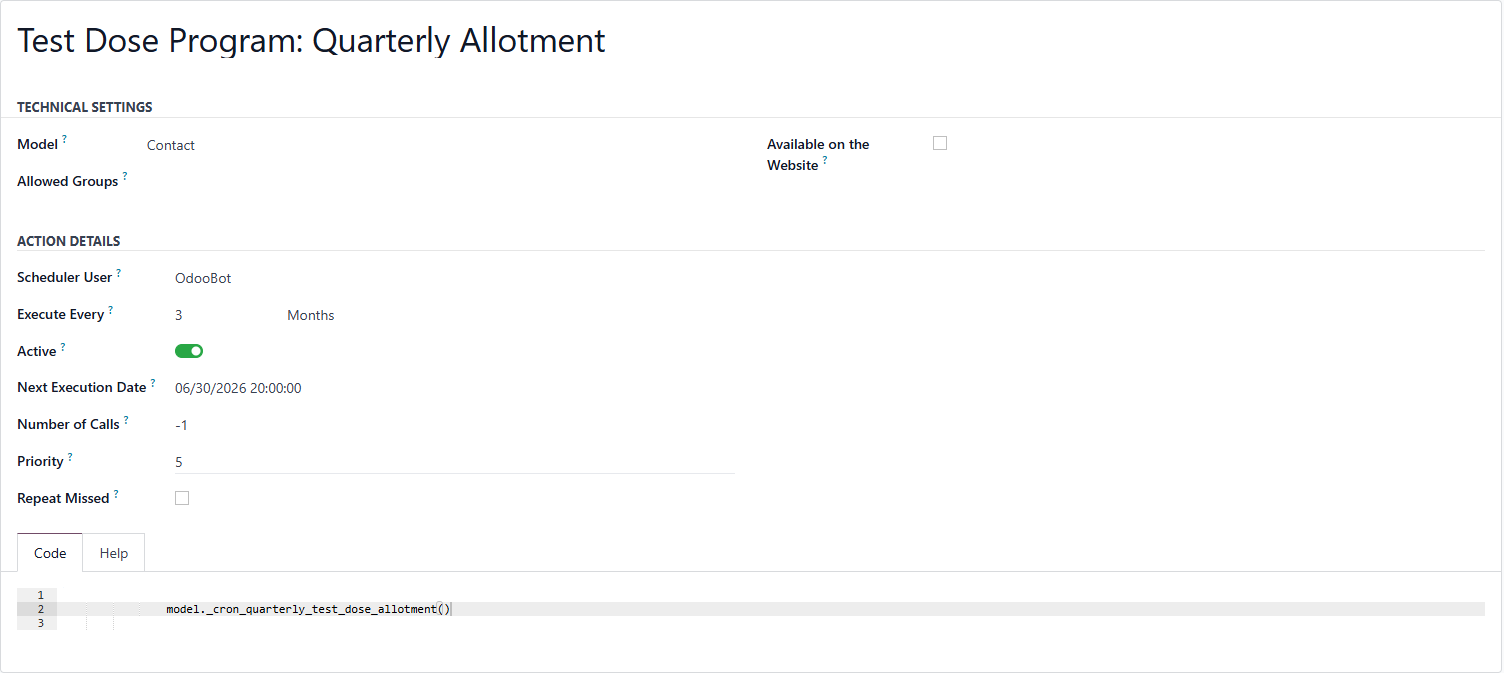
Q1 | Q2 | Q3 | Q4 |
January 1 | April 1 | July 1 | October 1 |
What it does for each Treatment Center:
- Snapshots the previous quarter's doses used onto that quarter's history record.
- Reads the TC's current Revenue Last 90 Days value.
- Assigns the correct Group (A/B/C/D) and Allowance (125/75/40/15).
- Creates a new history record for the new quarter.
- Updates Test Dose Allowance and Test Dose Group and resets Test Doses Used on the TC record.
Since the cron runs on a schedule, you must run it manually the first time (or mid-quarter during setup) to populate initial values.
6. Test Dose History
Every time the cron runs, it creates a history record for each Treatment Center. These records are stored permanently and can be used for reporting.
Each history record captures:
- Quarter label (e.g. Q2 2026)
- Quarter start and end dates
- Revenue Last 90 Days at the time the allotment was calculated
- Group assigned (A, B, C, or D)
- Allotment granted
- Doses used (snapshotted at end of quarter)
- Whether the allowance was manually overridden
How to access history:
- Smart Button: Open a TC record and click the TD History button at the top.
- Global View: Go to Contacts > Test Dose History to see all TCs across all quarters.
- Filters available: Group A/B/C/D, Manually Overridden, Group By TC/Quarter/Group.
7. How to Test the Program
Step 1 - Run the Cron Manually (First-Time Setup)
Since the cron only fires automatically on the first day of a quarter, you need to run it manually to populate initial values:
- Go to Settings > Technical > Automation > Scheduled Actions
- Search for: Test Dose Program: Quarterly Allotment
- Click into the record and press Run Manually
Step 2 - Verify the Treatment Center Record
Open any Treatment Center and go to the Doctor Dashboard tab. Confirm:
- Test Dose Group shows A, B, C, or D based on their revenue
- Test Dose Allowance shows 125, 75, 40, or 15 matching the group
- Test Doses Used shows 0 (or actual count if Rxs exist this quarter)
- Test Doses Remaining = Allowance - Used
- TD History smart button appears at the top showing 1 record
Step 3 - Verify the History Record
Click the TD History button on the TC record and confirm the record shows:
- Quarter = current quarter (e.g. Q2 2026)
- Revenue Last 90 Days = TC's revenue at time of calculation
- Group and Allotment match the tier table
- Doses Used = 0
- Manually Overridden = unchecked
Step 4 - Test the Discount on a Sales Order
Create a new Sales Order and verify the discount applies correctly:
- Set Pay Type to Practice Pay
- Set a Payment Term
- Add an order line linked to an Rx from a Provider whose TC has remaining > 0
- Select a product with internal category = Test
- Confirm the Disc.% column shows 100 and Promo Code shows TEST-DOSE-FREE
Step 5 - Test That Discount Does NOT Apply
- Set the TC's Test Dose Remaining to 0, then test both branches:
- Opt In unchecked + automated cron: Rx should move to Clarify Rx with a chatter note stating the TC is over their allotment.
- Opt In unchecked + manual Send to Lab: A blocking error popup should appear preventing the SO from advancing.
- Opt In checked + either path: Order processes at full price with no promo applied.
schedule
Step 6 - Test Manual Override
Log in as a Sales Manager, open a TC record, and manually change the Test Dose Allowance to a different number. Confirm the value saves and is not overwritten until the next cron run.
8. Frequently Asked Questions
Q: What happens if the allowance formula changes?
A: The change will take effect the next time the cron job runs (or the next manual run).
Q: What if a TC has $0 revenue?
A: They are assigned Group D with 15 doses. The minimum allotment is 15 doses for any active Treatment Center.
Q: What if the cron runs twice in the same quarter?
A: It is safe. The cron checks if a history record already exists for the current quarter before creating a new one. If it does, it skips creation and only updates the TC fields.
Q: Where do I find the full history for reporting?
A: Go to Contacts > Test Dose History. You can filter by Group, quarter, or Treatment Center and use the Group By options to generate summary views.
Q: Can the promo code label be changed?
A: Yes. Go to Settings > Technical > Parameters > System Parameters and update the value for menmd.test_dose_promo_code.
9. Next Steps
1. Review/ Test functionality in UAT & Production
2. Assign correct pricing to All Test Dose Products.
2a. This is absolutely required before roll out. This will directly effect a hidden/ future field visible to the providers (Money Patients Saved).
3. Train team on the Test Dose Program
4. Launch
5. Update fields on Doctor Dashboard.
6. Update Title of Money Patients Saved.